
Connect the MCP server
The Blockradar docs MCP server is hosted at:- Search the docs for guides, code examples, and API reference pages.
- Read pages and the OpenAPI spec to look up exact endpoints, parameters, and response fields.
- Report a docs problem to the Blockradar team when a page is wrong or out of date.
The MCP server reads public documentation only. It can’t access your Blockradar account, wallets, or transactions, and it doesn’t call the Blockradar API.
- Claude Code
- Cursor
- VS Code
- Claude Desktop
- Windsurf
Run this command in your terminal:This adds the server to the current project. To use it in every project, run the same command with
--scope user.What to ask it
Once connected, your assistant answers from the docs instead of guessing at endpoints. Try one of these — if the server is connected, it searches the Blockradar docs before it answers:- “Create a child address on Base and verify the
x-blockradar-signatureheader when a USDC deposit webhook arrives.” - “Estimate the network fee for a USDT withdrawal on Tron before I execute it.”
- “Move USDC from Base to Arbitrum with Gateway, and tell me how long finality takes on each chain.”
- “Validate a customer-supplied Solana address before I queue a withdrawal, and show me what an invalid address returns.”
Chat about a page
Every docs page has a Copy page button in the top-right corner. Open the menu next to it for more options: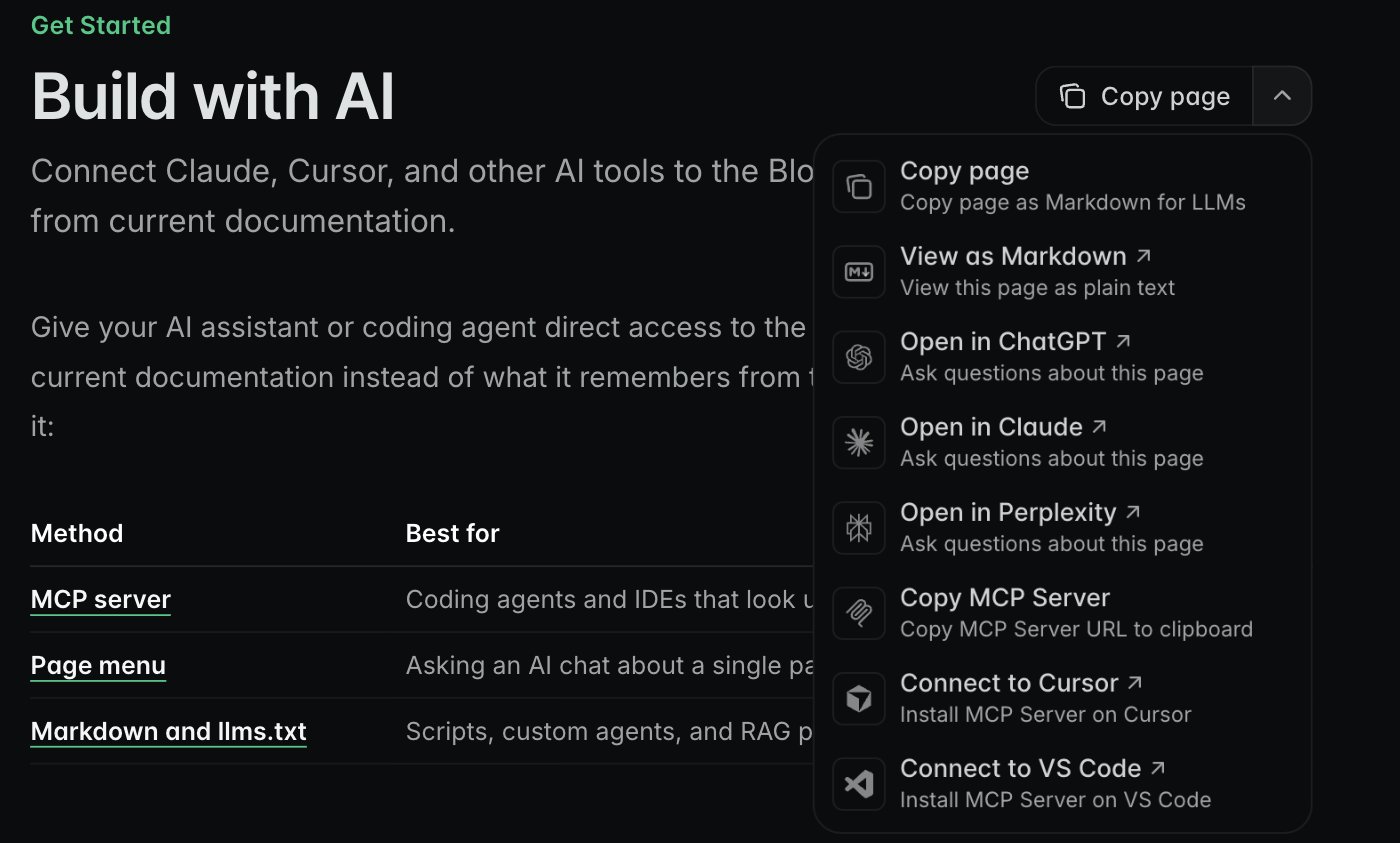
Use it to ask questions about one page, generate code from an API reference page, or debug an integration with the right page loaded.