> ## Documentation Index
> Fetch the complete documentation index at: https://docs.blockradar.co/llms.txt
> Use this file to discover all available pages before exploring further.
# IP Whitelist
> Lock your API access to approved IP addresses only
In a nutshell
Blockradar's IP whitelisting lets you restrict API requests to specific IPs, adding an additional layer of protection to your integration.
## How It Works
By default, your API key can be used from any IP address. With IP whitelisting enabled, Blockradar will reject any API request that doesn't originate from one of your approved IPs. This helps prevent unauthorized use of your API key, even if it's accidentally exposed.
## Setting Up IP Whitelisting
Log in to the [Blockradar Dashboard](https://dashboard.blockradar.co) and navigate to the **Developers** page from the sidebar.
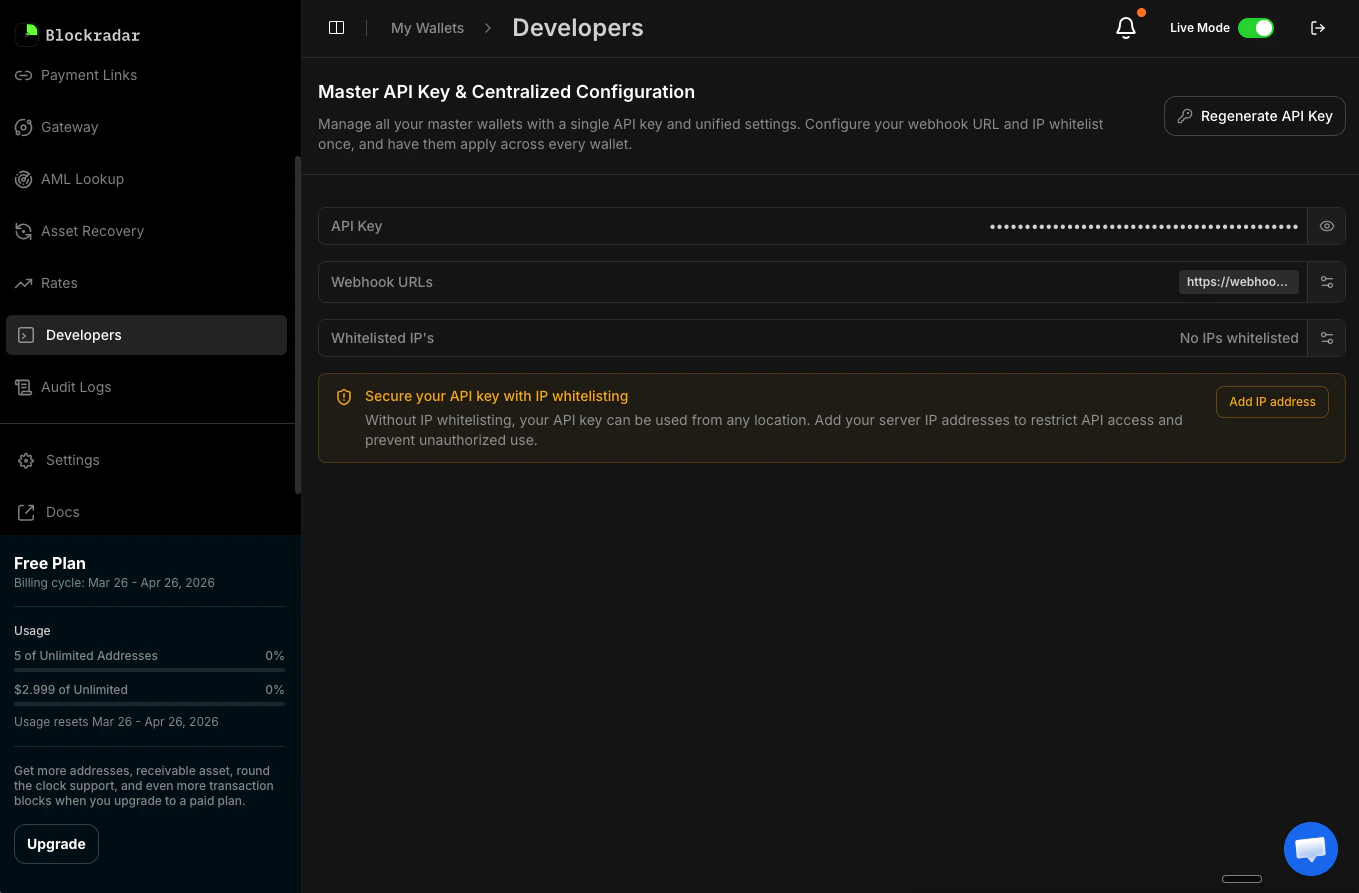 Find the **Secure your API key with IP whitelisting** section.
Click **Add IP address**, enter the IP address you want to approve, and click **Save**.
Find the **Secure your API key with IP whitelisting** section.
Click **Add IP address**, enter the IP address you want to approve, and click **Save**.
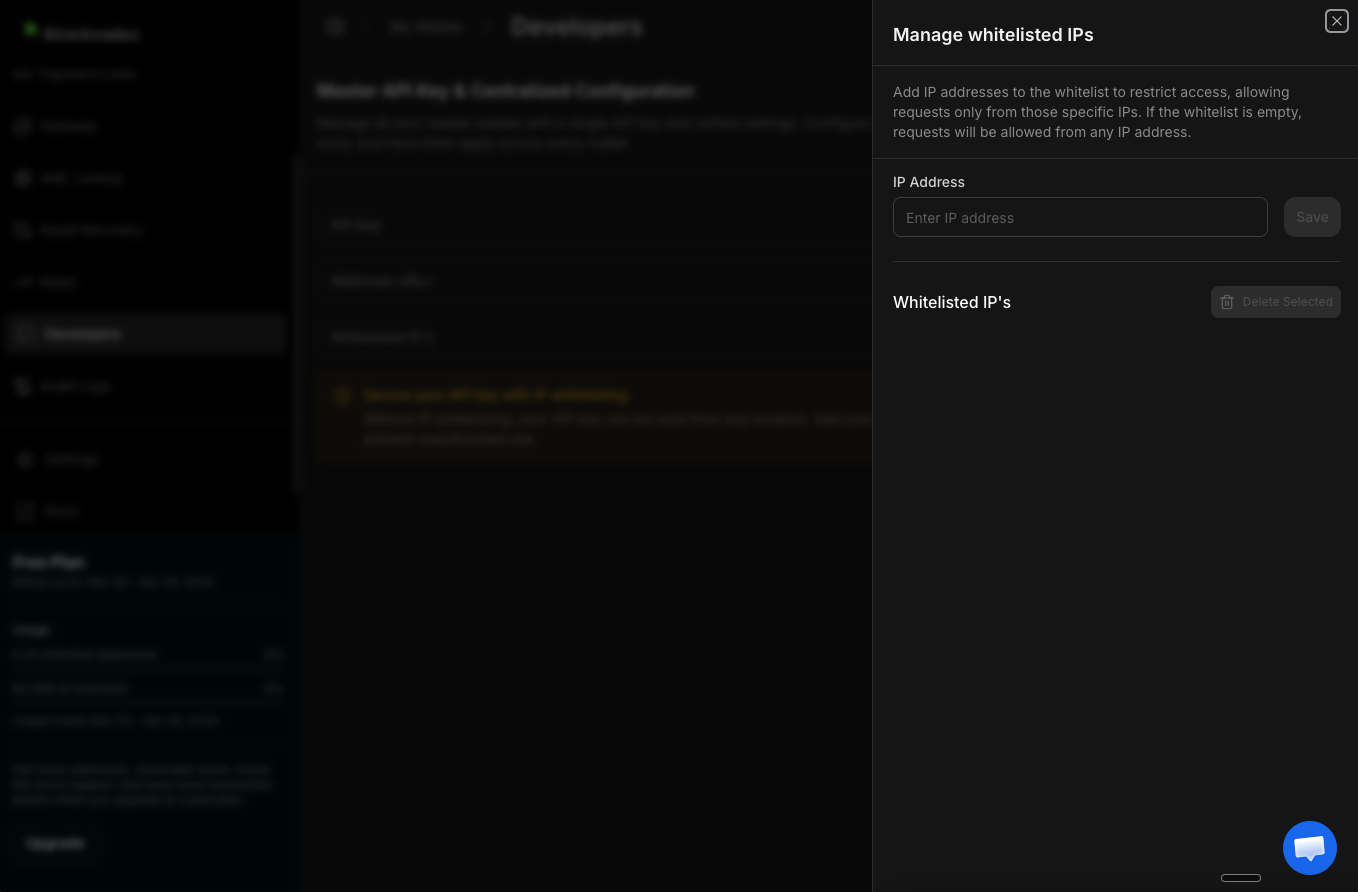 Make sure to add all IP addresses that your application uses to call the Blockradar API, including any staging or CI/CD servers. Requests from non-whitelisted IPs will be rejected.
If you're unsure which IP your server uses, you can check by running `curl ifconfig.me` from your server's terminal.
Make sure to add all IP addresses that your application uses to call the Blockradar API, including any staging or CI/CD servers. Requests from non-whitelisted IPs will be rejected.
If you're unsure which IP your server uses, you can check by running `curl ifconfig.me` from your server's terminal.